Ladder trading on Polymarket
A price ladder is the order-entry view that exchange traders have used for decades: every price level of a market on a vertical axis, the resting orders at each level next to it, and your own orders in a column of their own. polydesk clicktrader brings that view to prediction markets as a locally installed desktop app. This guide explains what the ladder shows, how orders are placed and cancelled from it, and what is different from trading in a browser tab.
What a price ladder is
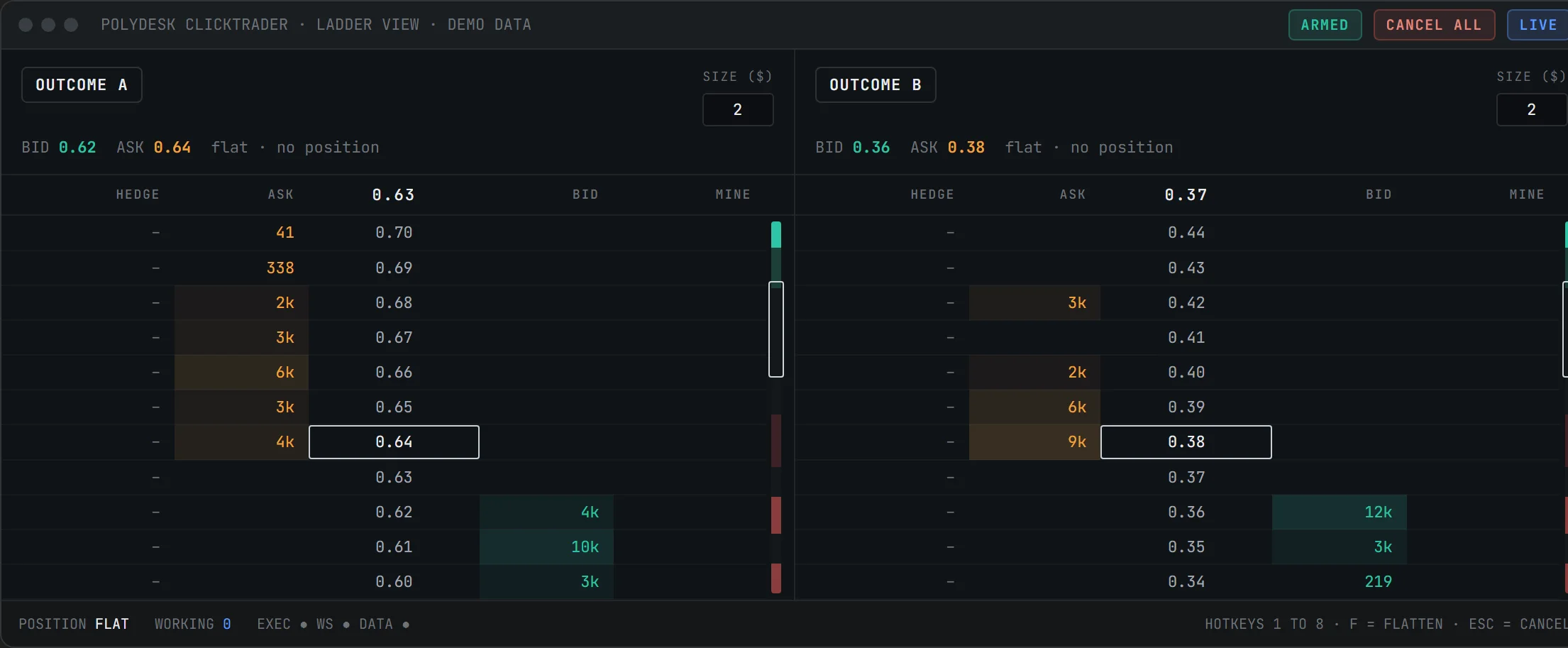
A ladder lists the price levels of one market outcome from high to low. At each level it shows the size resting in the order book: asks (sell interest) above the current price, bids (buy interest) below it. The current price sits in the middle and the ladder follows it as it moves. Because every level is visible at once, the trader sees where liquidity sits and how thick or thin the book is around the price, without opening a depth chart.
The second property of a ladder is that it is an input, not only a display. Clicking a level is the order. There is no ticket to fill in, no confirmation dialog on a ladder click (a hedge asks once, unless you switch that off) and no need to move between a chart, a form and a positions table. The time between a decision and the order reaching the book is one click.
The ladder in polydesk clicktrader
Each outcome of a market gets its own ladder panel. On a two-outcome market you see two ladders side by side; their prices are complementary and add up to about 1.00. Each panel has the same columns:
- Price: the level itself, one row per tick. The current price row is marked.
- ASK: resting sell size at that level, shaded by size so the thick levels stand out.
- BID: resting buy size at that level, shaded the same way.
- MINE: your own working orders at that level as chips. Click a chip to cancel that order.
- HEDGE: the profit or loss of closing your position at that level — the cash-out figure, computed live across outcomes. The share it closes comes from the HEDGE % preset in the top bar.
Above the columns, the panel header shows the outcome name, the best bid and ask and your position in that outcome. The size preset you are trading with is always visible in the top-right of the panel. On the edge of each ladder a depth minimap shows the whole book at a glance, and the ladder follows the market's mid price so a fast market does not run off the screen.
Placing and cancelling orders from the ladder
Three clicks cover everything:
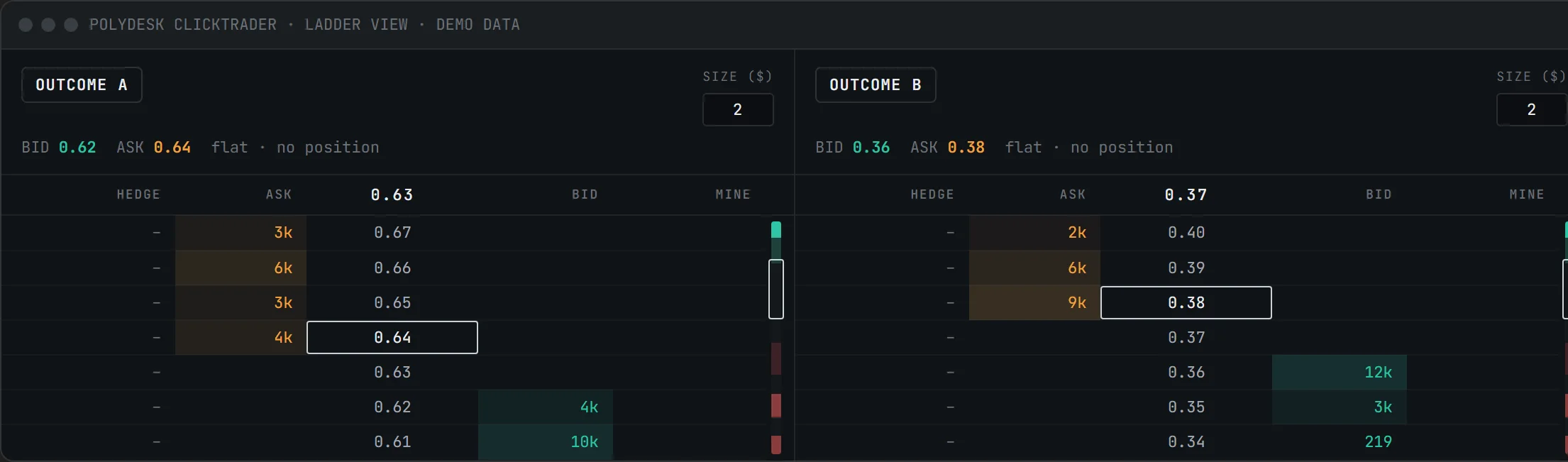
- Click a price cell to make. A resting order is placed at that level with your current size preset. It appears as a chip in the MINE column.
- Click an ASK cell to take. That buys at that level, taking the liquidity that rests there. A BID cell does not sell: clicking it rests a buy at that level, joining the bid.
- Click a HEDGE cell to sell. That closes the chosen share of your position at that level; the ladder never sells on a BID click.
- Click a MINE chip to cancel that single order. Esc cancels every working order, F hedges every position at the best bid, and CANCEL ALL in the WORKING ORDERS header of the bottom panel does the same as Esc.
Sizes come from eight presets bound to the number keys 1 to 8. Change the size without leaving the ladder; the active preset is shown in every panel. Whether an order is a limit order resting in the book or a taker order hitting the other side follows from where you click, not from a dropdown.
ARMED, DISARMED and paper mode
Order placement is guarded by a switch that is always on screen. DISARMED blocks every new order while cancelling, selling and hedging keep working; use it whenever you step away. ARMED re-enables placement. The PAPER and LIVE badge next to it tells you which mode you are in: paper mode runs the full ladder against live market data with simulated fills, free and without time limit, and is where the workflow becomes muscle memory before real funds are involved. The tutorial walks through the first session.
Two outcomes, one position
On a prediction market, buying one outcome and buying the other are mirror images: a share of outcome A at 0.64 and a share of outcome B at 0.36 together cost 1.00 and pay 1.00. polydesk clicktrader computes your net exposure per market across outcomes and shows it live in the positions panel. The HEDGE column on each ladder tells you, for every price level, what closing your position there would bank or cost. What you do with that information is your decision; the software only displays it.
Ladder vs. browser tab
| Step | Browser tab | Ladder in polydesk clicktrader |
|---|---|---|
| See the book | Open the market, expand the order book | Always visible, one ladder per outcome |
| Place a limit order | Choose side, type price and size, confirm | Click the price cell |
| Take liquidity | Choose side, market order or type the price, confirm | Click the ASK cell (a BID click rests a buy instead) |
| Change size | Edit the size field | Press 1 to 8 |
| Cancel one order | Find it in the orders list | Click its chip in MINE |
| Cancel everything | One by one | CANCEL ALL, or Esc |
| Several markets | One tab each | One workspace, ladders and Grid side by side |
The ladder does not know anything the web interface does not know; it draws on the same order book. What changes is the number of steps between seeing and acting, and that your signer key stays on your machine because the app talks to the Polymarket API directly, with no server of ours in between (security).
Frequently asked questions
What is ladder trading?
Is the ladder in polydesk clicktrader a bot?
Do I need a Polymarket account to use the ladder?
Is ladder trading with polydesk clicktrader free?
What do the prices on the ladder mean?
Next: the Grid, every outcome of a market in one row · desktop terminal vs. browser tab · download polydesk clicktrader
What this page is and is not. polydesk clicktrader is a software tool, a local user interface. It provides no recommendations, signals or strategies and promises no economic outcome; all trading decisions and their results are your own. Trading on prediction markets can lead to the loss of all committed funds. In live mode, a software error can lead to unintended orders; practice in paper mode first, start with small sizes and use DISARM when you step away (terms, section 5).
Compatible with Polymarket. Not affiliated with Polymarket, neither operated nor endorsed by Polymarket. Polymarket is a trademark of its respective owner; itereon GmbH is independent and uses the name solely to describe compatibility. Whether you may use offers on third-party platforms at your location is for you to verify.